

Marabu
Marabu is a simple open-source music tracker built from Soundbox.
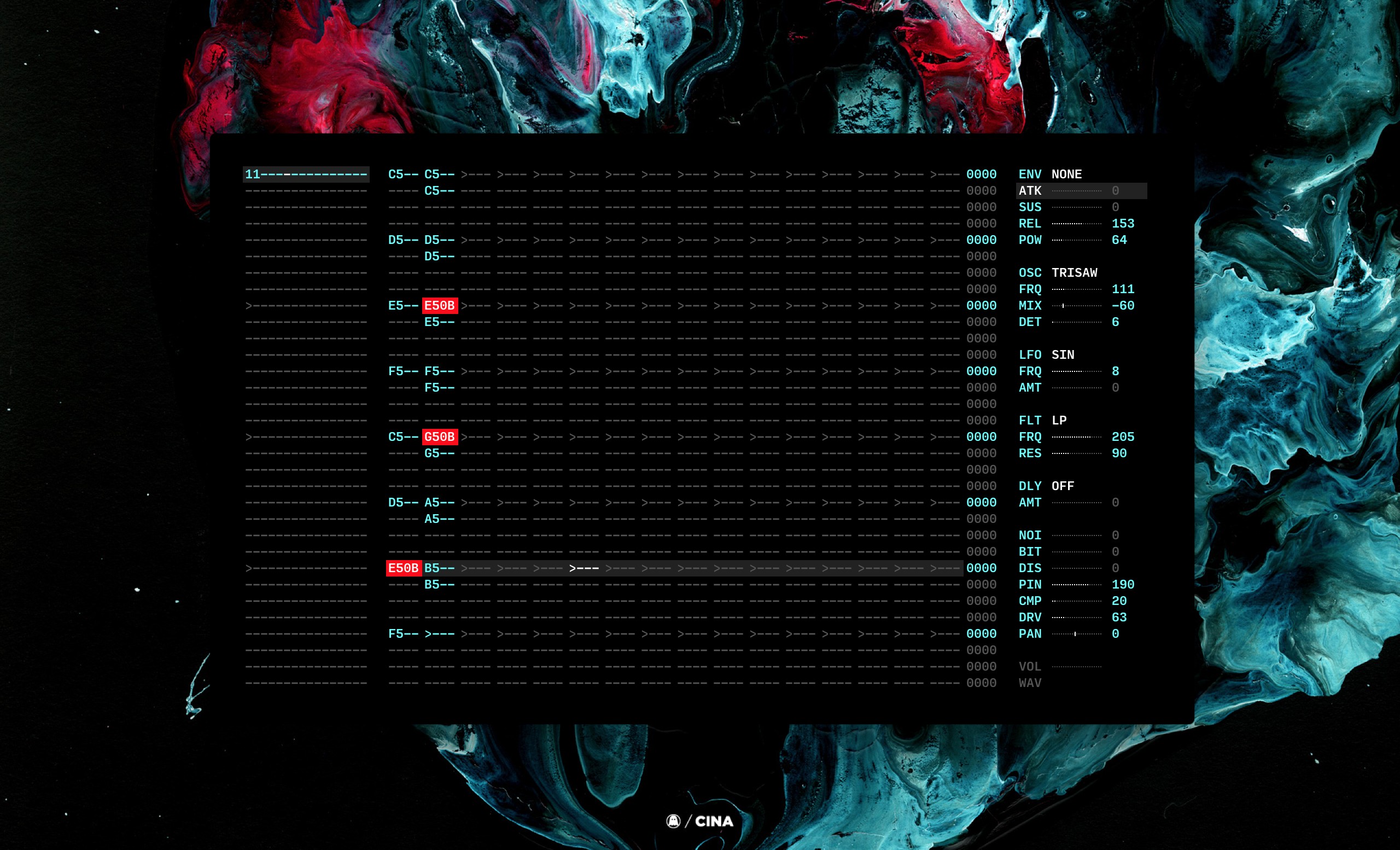
Guide
If this is your first time using a tracker, don't worry this quick introduction will cover the basics of writing a little track, and exporting it to an audio file.
The interface is divided into 3 columns, the sequencer, the pattern editor and the instrument. By default, the application launches with an active pattern, in the first instrument. There is a maximum of 16 instruments that can play at the same time.
To move the pattern cursor, use the arrow keys. Pressing the keyboard keys a,s,d,f,g,h & j will record a note in the first row of the first column. Pressing the ArrowDown and ArrowUp keys, will move the cursor up/down in the sequencer. Allowing you to fill pattern #1 with notes. Pressing space will play the pattern, pressing esc will stop.
To change the sequencer patterns, use the arrow keys while holding alt. To add notes to a second instrument, move to the second column and press alt ArrowRight, this will set the first row of the second instrument to 1, and allow you to record notes. Press alt ArrowDown to move to the second row, and press alt ArrowRight again twice, to extend the track to 2 rows, and begin adding notes to the second row of the second instrument.
To change the instrument controls, use the arrow keys while holding shift. To save your song, press ctrl s, to render an audio file(.wav) press ctrl r.
Controls
Basics
spacePlay.escStop.
General
ctrl nNew.ctrl sSave.ctrl SSave as.ctrl oOpen.ctrl rExport .wav.ctrl iExport .ins(instrument).ctrl tExport .thm(instrument).
Sequencer
Arrows
alt ArrowDownNext Sequence.alt ArrowUpPrevious Sequence.alt ArrowRightIncrement Pattern Id +1.alt ArrowLeftDecrement Pattern Id -1.
Keys
ctrl lLoopmode, see below.
Editor
Arrows
ArrowRightNext Instrument.ArrowLeftPrevious Instrument.ArrowDownNext Row.ArrowUpPrevious Row.
Keys
)Increment Note Value +12.(Decrement Note Value -12.0Increment Note Value +1.9Decrement Note Value -1.BackspaceErase Note in Row./Add a Control Keyframe.TabToggle Composition Mode.
Instrument
Arrows
shift ArrowDownNext Control.shift ArrowUpPrevious Control.shift ArrowRightIncrement Control Value +1.shift ArrowLeftDecrement Control Value -1.
Keys
]Increment Control Value +10.[Decrement Control Value -10.}Increment Control Value +1.{Decrement Control Value -1.xNext Octave.zPrevious Octave.
Keyboard
Hold shift, while pressing a note, to make chords.
aPlay/Record C.sPlay/Record D.dPlay/Record E.fPlay/Record F.gPlay/Record G.hPlay/Record A.jPlay/Record B.wPlay/Record C#.ePlay/Record D#.tPlay/Record F#.yPlay/Record G#.uPlay/Record A#.
Effects
Envelope
ATKAttackSUSSustainRELReleasePOWAttack/Release curve
Osc
MOD--MIXDry/Wet between the 2 oscFRQFrequencyDETDetune, frequency offset between the 2 osc.
LFO
AMTAmountFRQFrequency
Efx
LPLow-passHPHigh-passBPBand-passFRQFilter FrequencyRESResonance
Delay
DLYDelay RateVOLDelay Volume
Shapers
NOINoise VolumeBITBitcrusherDISDistortionPINPinkingCMPCompressorDRVDrivePANPan
UV
VOLUV Volume/EnvelopeWAVUV Wave shape
Cheatmode
Press ctrl k to activate cheatmode. Press esc to exit cheatmode.
Selection
The cheatmode will catch 3 keys, corresponding to int/hex of rate, length & offset of the selection. The / key indicates that it does not loop through the whole pattern.
4Every 4th note.42Every 4th note, and the following one.422Every 4th note, and the following one, starting from the second./Only the first note./ 44Only the 5th, 6th, 7th and 8th first notes.
Copy/Paste
cTo copy the entire pattern.vTo paste copied notes.4 cTo copy every 4th note.
Insert Multiple
8 asThis will add C5 and D5 to the 1st and 9th note.
Erase Multiple
backspaceTo clear a whole column.4 backspaceTo clear every 4th bar.42 backspaceTo clear every 4th bar, starting at the second bar.
Modify Multiple
+Increment each note of the pattern.-Decrement each note of the pattern.
Use case
To copy the first 16 bars, into the 16 following bars and play the following note.
/ F cCopy the first 16 bars./ F F vPaste the first 16 bars from the the 16th bar.
Loopmode
Press ctrl l to activate loopmode.
Selective play
enterWill play from current sequencer row, for 1 track./ enterWill play from current sequencer row, only active instrument, for 1 track.4 enterWill play from the current sequencer row, for 4 tracks./ 4 enterWill play from the current sequencer row, only active instrument, for 4 tracks.
Copy/Paste
cTo copy the selected sequence.vTo insert the selected sequence.
Notes
During render, the track time is displayed in the before-last row of the Editor in the 0252 format, or 2:52.
Themes
You can customize the look of your tracks by editing the .mar file and replacing the attributes' colors.
theme: {
  background:"#fff",
  f_high:"#f00",
  f_med:"#0f0",
  f_low:"#00f",
  f_inv:"#00f",
  b_high:"#ff0",
  b_med:"#f0f",
  b_low:"#0ff",
  b_inv:"#00f"
}
Development
There are currently no means to change the bpm, to do so, update the bpm value from the exported .mar file to an int between 50 and 450. Use npm start to develop locally.
TODOs
Optimisation
- Trim tracks on export.
- Load trimmed track.
Feature
- Continuous follow instead of pageview.
- Template file of just sequencer sequences.
Misc
- Cancel render with escape.
Bug
- add .wav to export(cannot replicate?)
- Clicking icon on dock, shows the application. Replicate on Left.
License
See the LICENSE file for license rights and limitations (CC).